 Tucky
TuckyEvery client call, on the record and in order.
Stay present in client calls with recording and optional guidance. Review the summary and project tag before planning the follow-up.
Download free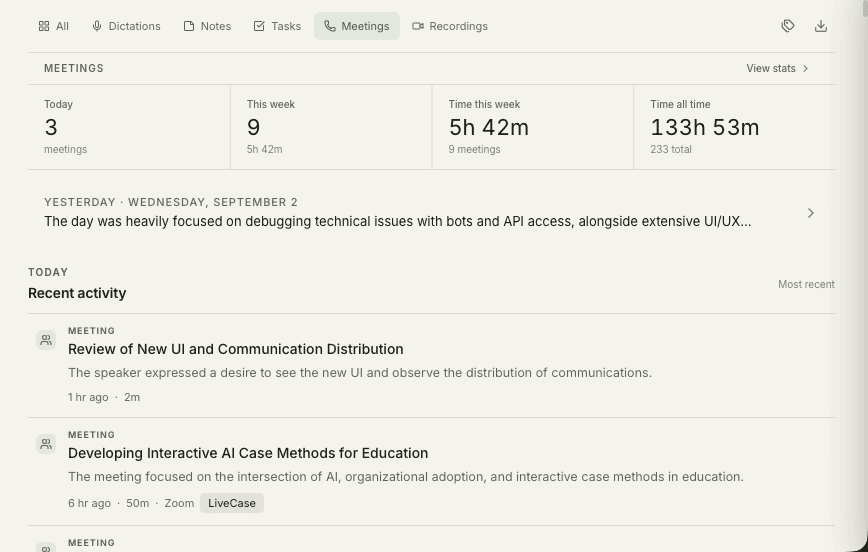
Consulting is sold in hours, so every minute spent writing up a call is a minute you cannot bill. The usual workaround — typing while the client talks — costs you the thing clients are actually paying for, which is your full attention in the room. Tucky removes the trade-off by making the record a by-product of the conversation instead of a task that follows it.
The second problem is recall across engagements. A discovery point from a call six weeks ago is worth real money when it resurfaces in a scoping document, and worth nothing at all if you cannot find it. Because every session is transcribed and indexed locally, an engagement history becomes something you can question directly rather than an archive you never reopen.
You can’t bill and take notes at once.
Record both sides of a supported call according to your recording policy. Optional meeting guides help you follow an agenda; check generated notes against the transcript.
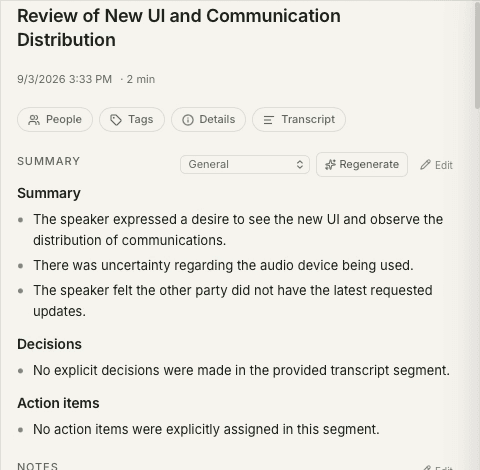
Ask across every engagement.
Search transcripts by question — “what did Acme ask for?” — answered on-device from your own history.
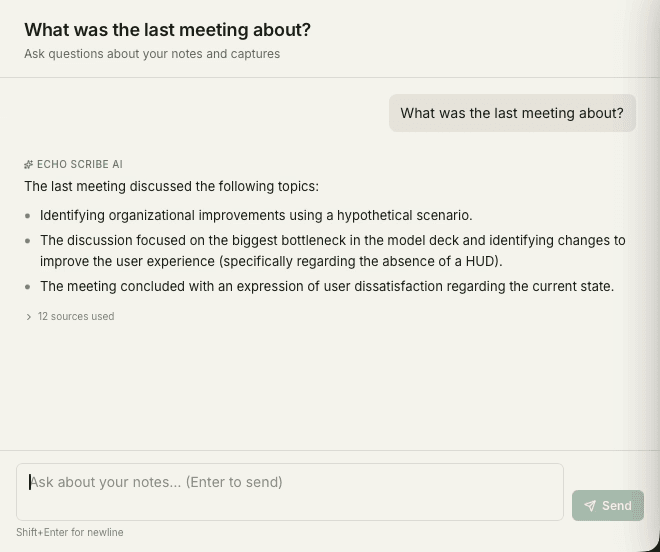
Leave with a follow-up you can review.
Review decisions and action items, then create tasks or export the notes to your other tools.
Frequently asked questions
How is client material stored and shared?
Transcription and built-in AI processing run locally. Exporting files, uploading to Google Drive, or giving an external AI tool access through MCP can share selected content outside the app. That tool’s own processing and storage rules then apply.
Can I keep each client’s material separate?
Use project tags to group each engagement. Automatic tagging is optional and can need correction. Project labels help organize records; they are not separate accounts or access-control boundaries.
Do the notes hold up as a record of what was agreed?
Use the recording and transcript to check AI summaries. Generated text can omit details or misinterpret what was said.
Stop typing. Start talking.
Download Tucky for Mac. No Terminal or Homebrew required.
Open the DMG, drag Tucky to Applications, then open Tucky from Applications.
Developer ID signed and Apple-notarized.