 Tucky
TuckyIt all starts with your voice.
Push-to-talk voice to text in any app, meetings recorded with a live transcript and call guidance, and screen capture for when showing beats telling.
Download free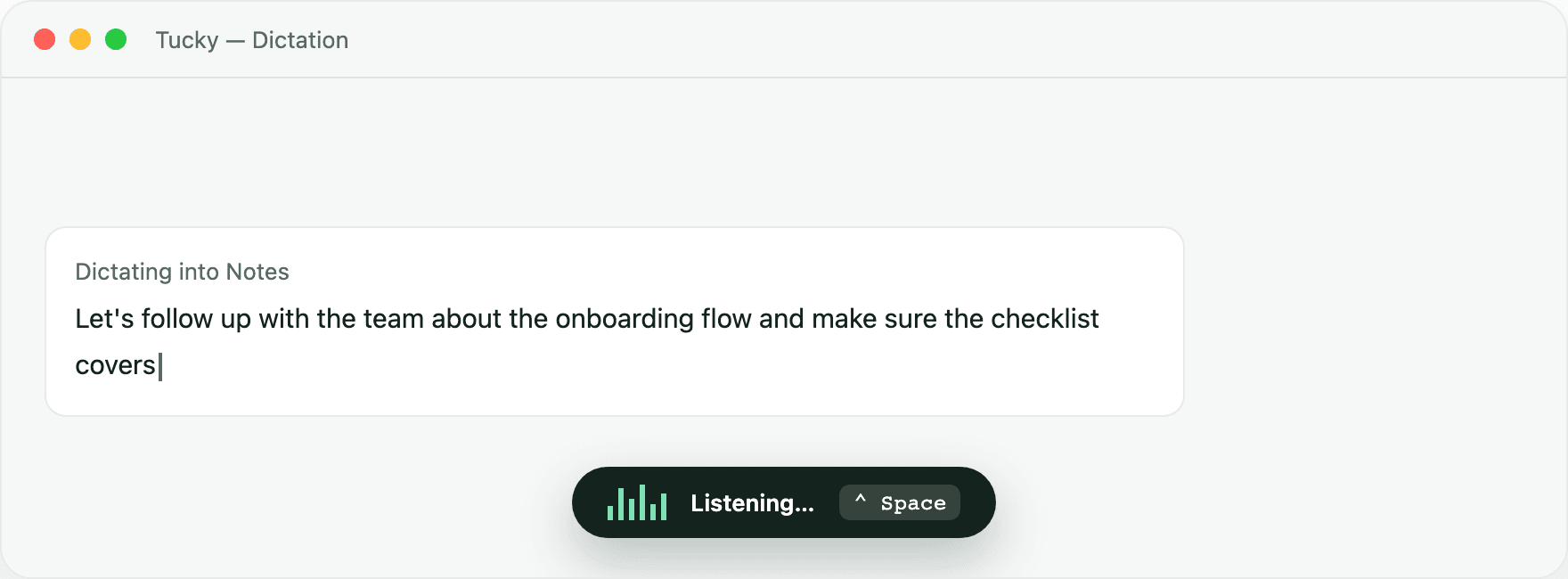
Capture is where the story starts — and it starts with your voice. Push-to-talk dictation turns speech into clean text anywhere on the Mac, with a trigger word that formats what you say on command: “Tucky, format this as an email.” Then meetings join in: Tucky detects when a call begins, records both system and microphone audio, and runs a live transcript with optional call guidance.
Customize the dictation shortcut, microphone, dictionary, and spoken corrections. Your trigger word can also create a note or task, format speech as an email or list, or run supported actions such as opening an app or website. These commands use the separate local language model.
Speak — it types. Cleanly.
Hold a hotkey, talk, release — polished text appears at your cursor in any app. Say your trigger word first — “Tucky, format this as an email” — and what you say comes out formatted, in your tone.
Meetings record themselves — and coach you live.
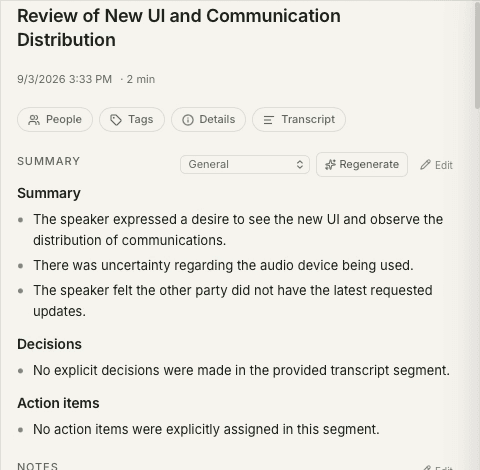
Zoom, Meet, and Teams calls are detected automatically — you choose per app whether to always record, ask first, or never. Both sides of the audio are captured, a live transcript runs as the call happens, and templates track covered points and suggest the next question.
Record your screen like a studio.
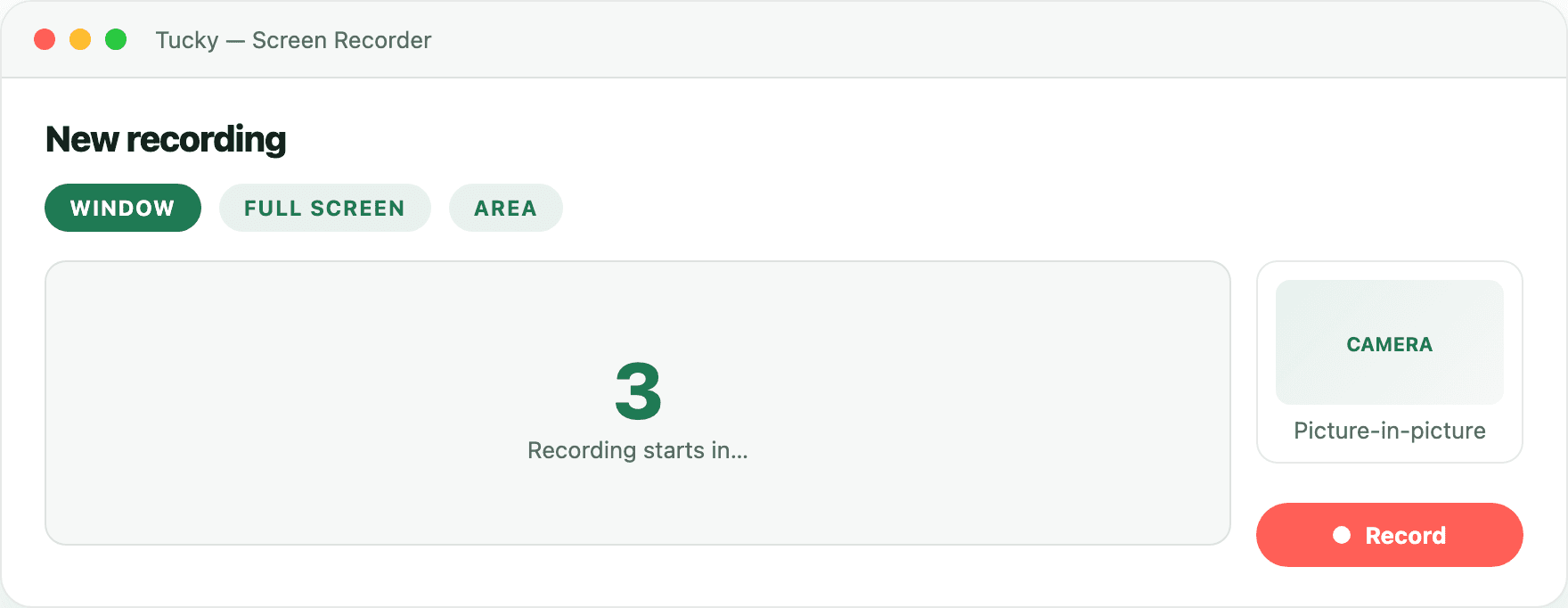
Record a narrated product demo, client walkthrough, or bug report. Edit the recording locally, then export it or upload it to Google Drive. Generate a transcript when you want to search the narration.
Keep your computer awake by voice
Tucky recognises the command and keeps your computer awake for the requested duration. Use it while a long-running command finishes or a queue of AI prompts works through its next steps.
Press your usual dictation hotkey and say:
“Tucky, keep my computer awake for two hours.”Frequently asked questions
How does automatic meeting detection work?
Tucky watches for active calls and can start recording when a meeting begins, capturing both sides of the conversation. You decide per app whether it always records, asks first, or never records — and it stops automatically when the room goes quiet.
Can I record system audio and my microphone together?
Yes. Tucky captures both the system output (everyone else on the call) and your microphone, so the transcript reflects the whole conversation rather than just your side.
Is dictation accurate in noisy environments?
Dictation runs audio through on-device RNNoise cleanup before transcription, so background hum and keyboard clatter are filtered out before the local speech model sees them, keeping transcripts crisp.
Stop typing. Start talking.
Download Tucky for Mac. No Terminal or Homebrew required.
Open the DMG, drag Tucky to Applications, then open Tucky from Applications.
Developer ID signed and Apple-notarized.