 Tucky
TuckyTurn everything you capture into answers.
Dictations, meetings, and screen narrations become one searchable memory — with daily recaps, chat over your history, and a live dashboard of what’s open.
Download free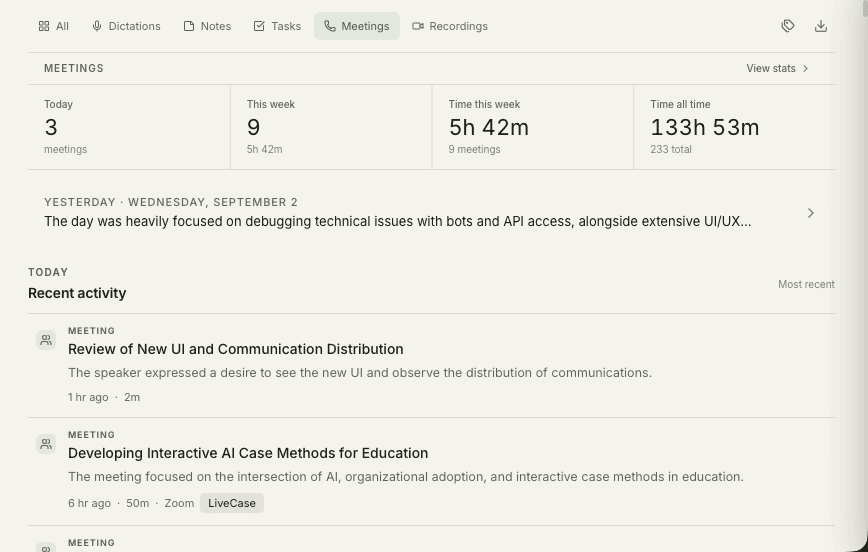
Keep dictations, notes, tasks, and meeting transcripts in a searchable local library. Project tagging is optional and can be wrong when a capture lacks context. Name the project in a voice note and review its assignment.
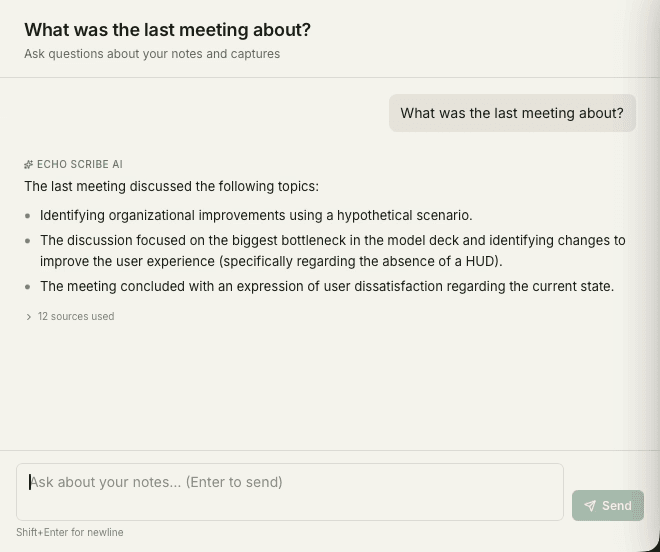
Ask questions about your saved work and inspect the sources behind each answer. Optional daily recaps are still being improved. For deeper prompt or workflow reviews, export notes or connect a compatible AI tool through MCP; that tool performs its own analysis.
Ask your work memory a question.
Every transcript, note, and recording is indexed locally. Search by keyword, chat with your own history — “what did we agree with Northstar about pricing?” — or export anything and take it to ChatGPT.
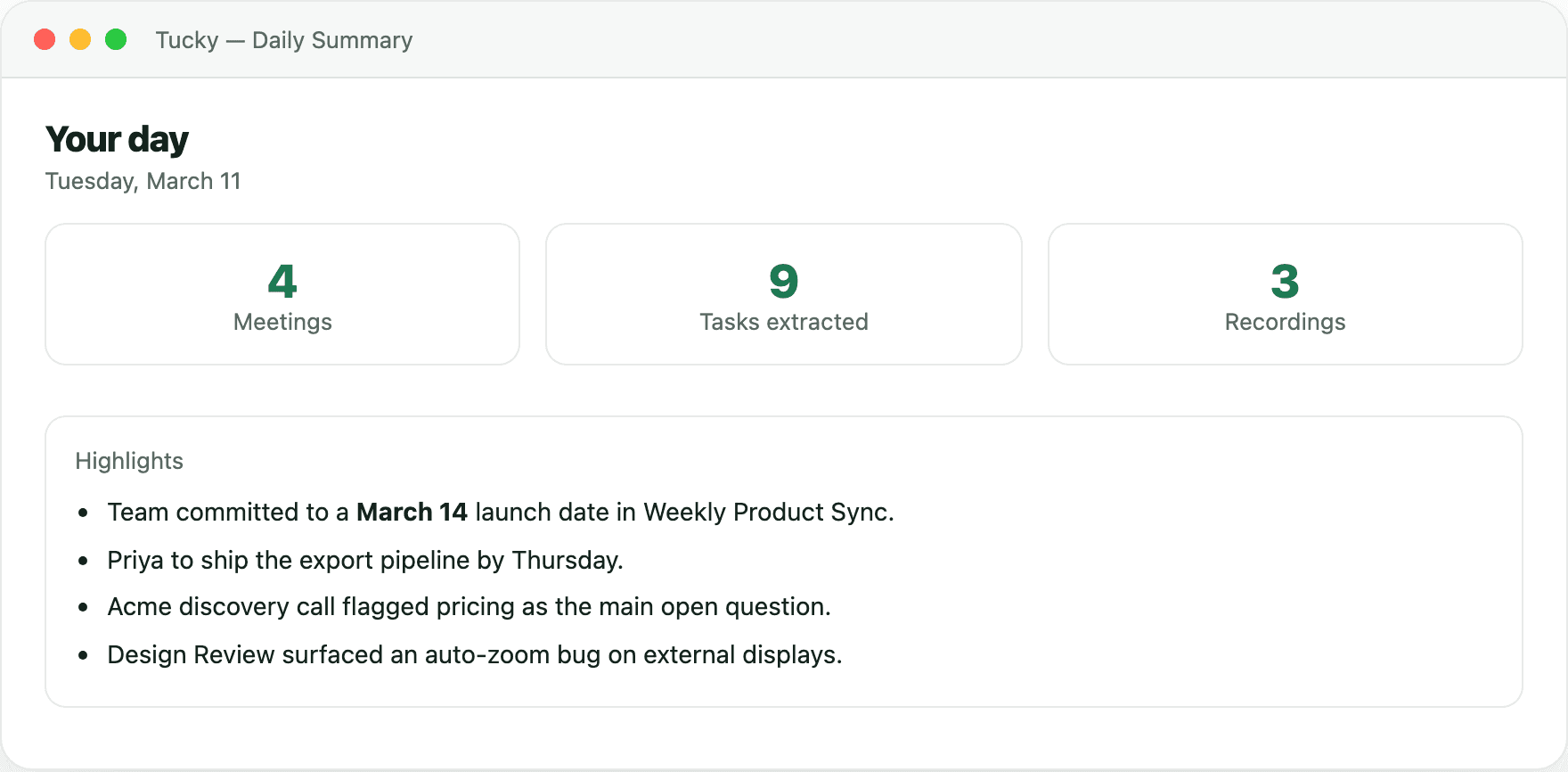
Start the day caught up. End the week honest.
Ask questions about your saved work and inspect the sources behind each answer. Optional daily recaps are still being improved. For deeper prompt or workflow reviews, export notes or connect a compatible AI tool through MCP; that tool performs its own analysis.
Organize with projects
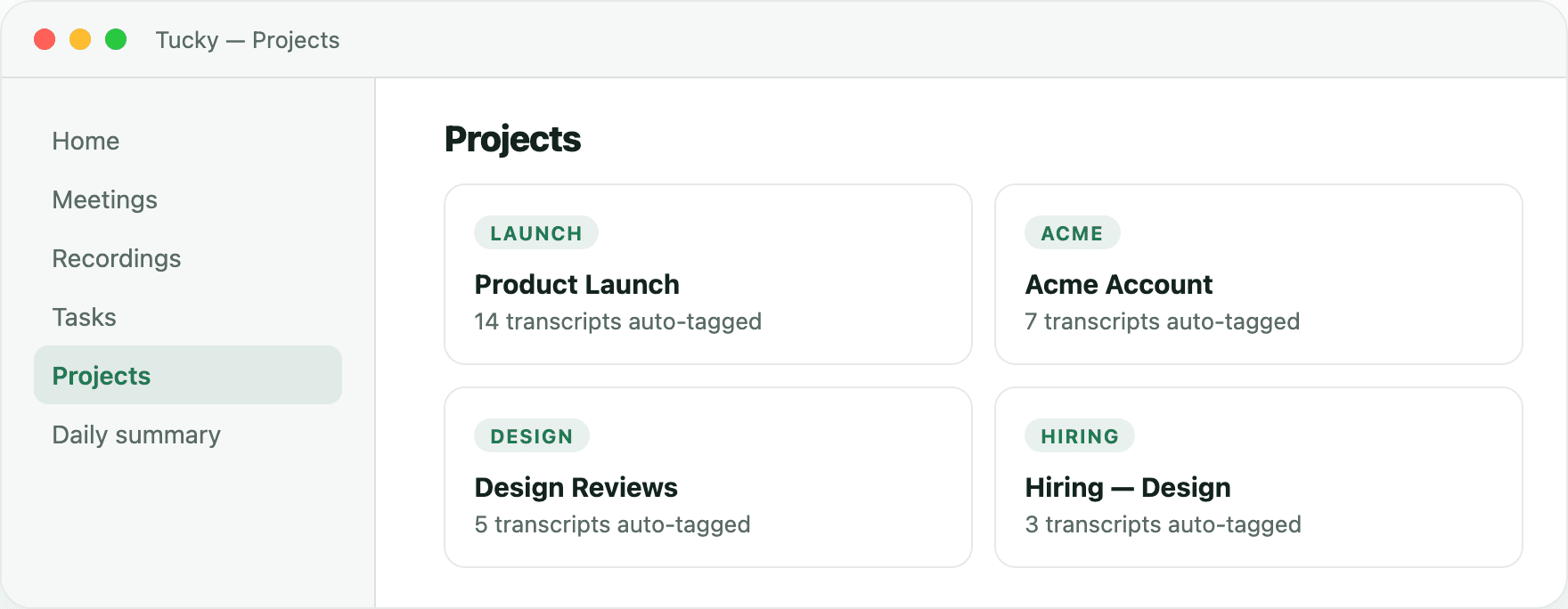
Create a note or task with a voice command and name its project. Meeting summaries can identify action items; review them before turning them into tracked tasks. Mark tasks done in the task list.
Frequently asked questions
Can I search across all my past meetings and notes?
Yes. Everything Tucky captures is indexed on-device, so you can search across every transcript, note, and summary instantly — and ask questions in natural language rather than guessing keywords.
How are tasks and action items created?
Create a note or task with a voice command and name its project. Meeting summaries can identify action items; review them before turning them into tracked tasks. Mark tasks done in the task list.
Does organizing my notes require an internet connection?
No. Indexing, search, summaries, and the natural-language chat over your work memory all run locally, so your knowledge base stays private and available offline.
Stop typing. Start talking.
Download Tucky for Mac. No Terminal or Homebrew required.
Open the DMG, drag Tucky to Applications, then open Tucky from Applications.
Developer ID signed and Apple-notarized.